


Open this article in your preferred AI assistant. ChatGPT and Perplexity receive the prompt directly; Gemini and Claude open while the same summary prompt is copied for you.
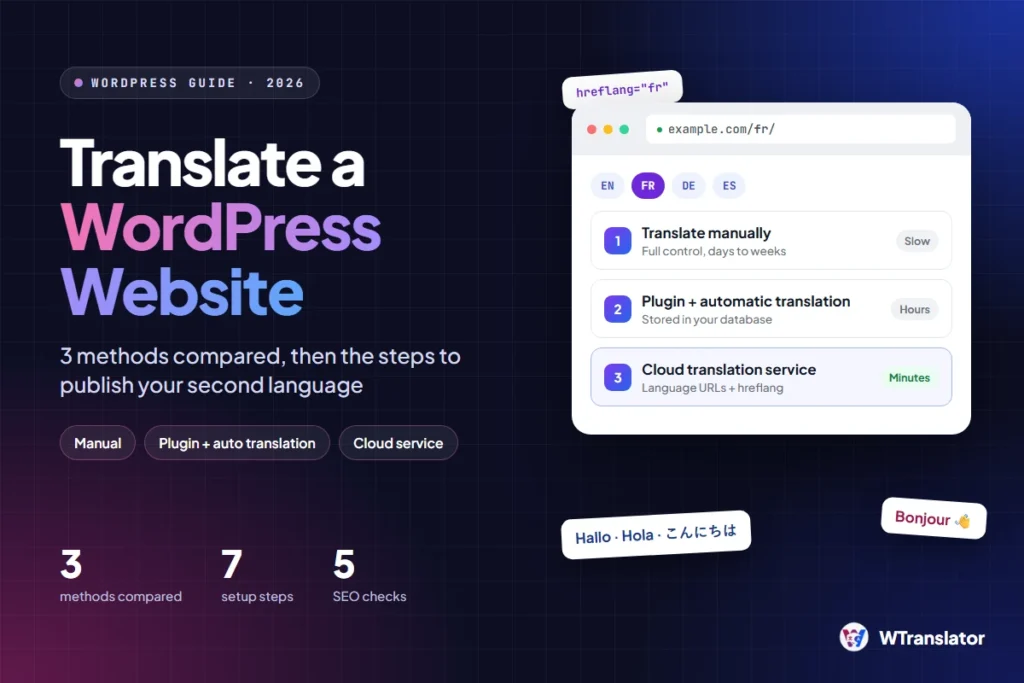
You can translate a WordPress website in three ways: manually, with a plugin that translates automatically, or with a cloud translation service. For most sites, automatic translation followed by a manual review of the important pages is the fastest method. This guide compares the three methods and then gives the steps to publish your second language.
WordPress does not translate your content
WordPress has a language setting in Settings > General > Site Language. This setting changes the language of the WordPress dashboard and of the texts that your theme and plugins supply, such as “Read more”.
However, the setting does not translate your pages, posts, menus or products. For that content, you need a translation plugin.
What a translated WordPress website needs
A translation plugin must do more than change words. Before you select a method, make sure that it gives you these five items.
- A URL for each language. For example,
example.com/fr/for French. Search engines index a language only if it has its own URL. - Hreflang tags. These tags tell search engines which page is for which language.
- Translated SEO data. This includes the page title, the meta description and the URL slug.
- A language switcher. Visitors must be able to change the language themselves.
- A method to correct translations. No automatic translation is correct every time.
Method 1: Translate manually
With this method, you create each translated page yourself and you write the translation. Polylang is the best-known free plugin of this type. It has more than 900,000 active installations and no limit on the number of languages.
Manual translation gives you full control of each sentence. It is also slow. A site with 40 pages and 3 new languages needs 120 pages that a person must write and keep up to date. In Polylang, machine translation with DeepL is part of the paid Pro version.
Use this method if you have a small site, one or two languages, and a person who can write in each language.
Method 2: Use a plugin with automatic translation
With this method, a plugin sends your text to a translation engine and saves the result in your WordPress database. You then correct the translation in an editor. TranslatePress and WPML are the two large plugins of this type.
The limits and the costs are different for each plugin:
- TranslatePress has a visual editor on the front end of the site. The free version is for sites with two languages. More languages, the SEO Pack and DeepL are paid add-ons. The free version includes 2,000 AI words, or you can connect your own Google Translate API key.
- WPML has no free version on WordPress.org. Its own guide recommends automatic translation followed by a manual review. The Multilingual CMS plan includes 22,500 AI words, and you pay for more words.
Use this method if you want the translations in your own database and you are prepared to configure API keys or to buy translation credits.
Method 3: Use a cloud translation service
With this method, a small plugin connects your site to a cloud service. The service translates your pages, stores the translations and publishes them at language URLs. You do not create pages in WordPress, and you do not configure an API key.
WTranslator, Weglot and Linguise are of this type. With the paid plans of WTranslator, the service stores the AI translation of each page, publishes it at a language URL and adds the hreflang tags. On the plans that include the translation editor, you can correct each translation manually.
Use this method if you have many pages, a WooCommerce store, or no time to manage translated pages one at a time.
The three methods compared
| Manual | Plugin with automatic translation | Cloud translation service | |
|---|---|---|---|
| Examples | Polylang (free) | TranslatePress, WPML | WTranslator, Weglot, Linguise |
| Who translates | You | A translation engine, then you correct | A translation engine, then you correct |
| Time to publish a language | Days to weeks | Hours | Minutes to hours |
| Where translations are stored | Your database | Your database | The cloud service |
| Typical cost | Free plugin, your time | Yearly license plus translation credits | Monthly or yearly subscription |
| Best for | Small sites with a translator | Sites that must keep all data in WordPress | Large sites and stores |
Translate your site step by step
These steps use the WTranslator plugin as the example. The sequence is almost the same for the other plugins.
- Make a backup of your site.
- In WordPress, go to Plugins > Add New Plugin.
- Search for “WTranslator”, then click Install Now and Activate.
- Open the WTranslator settings and select the languages that you want to add.
- Select the style and the position of the language switcher.
- Open your site in a private browser window and change the language.
- Examine your home page, one product page and your contact form in each language.
The free plugin translates each page in the browser of the visitor. This is sufficient to help visitors read your site. However, search engines do not index these translations, because the translated text has no URL of its own.
To get indexed language pages, connect the plugin to a paid WTranslator plan. The pricing page shows which plan includes language URLs, the translation editor and translated slugs.
Make the translated pages rank
A translated page ranks only if search engines can find it and understand it. Do these checks after you publish each language.
- Open a translated page and make sure that it has its own URL.
- View the page source and search for
hreflang. You must see one line for each language. - Make sure that the page title and the meta description are translated.
- Do not send visitors to a language automatically. Let them select the language with the language switcher.
- Add the translated URLs to your XML sitemap and submit the sitemap in Google Search Console.
You must also select a URL structure. A subdirectory (example.com/fr/) is the easiest structure to manage for most sites. A subdomain (fr.example.com) or a country domain (example.fr) is useful when you have a separate team or a separate business in that country.
Four mistakes to prevent
- You publish automatic translations without a review. Review at least your home page, your pricing page and your checkout in each language.
- You translate the text but not the slugs and the meta data. Search results then show a title in the wrong language.
- You forget the texts outside the page. Check the menus, the forms, the emails and the cookie notice.
- You add ten languages on the first day. Start with one or two languages in which you can answer customers.
Frequently asked questions
Can I translate a WordPress website for free?
Yes. You can translate manually with the free version of Polylang, or you can use a free plugin that translates in the browser, such as the free WTranslator plugin. For automatic translations that search engines index, you usually need a paid plan or translation credits.
Does automatic translation hurt SEO?
Not if the translated pages are useful and a person has checked them. Our guide to ChatGPT translation explains what Google says about pages that AI translated.
Which translation engine is the most accurate?
That depends on the language pair. Read DeepL vs Google Translate for a comparison, and test your own text before you decide.
How many languages should I add?
Start with the languages of the countries that already send you visitors. You can find these countries in Google Search Console and in your analytics tool.
Sources
- WordPress.org, Polylang plugin page, version 3.9.2, read 20 November 2026
- WordPress.org, TranslatePress plugin page, version 3.4, read 20 November 2026
- WPML, How to Translate Your WordPress Website in 2026, updated 4 February 2026
- Google Search Central, Managing multi-regional and multilingual sites




Comments
0 responsesNo comments yet. Be the first to share your thoughts.