
 ES · Hola
 BN · স্বাগতম
 FR · Bonjour
 DE · Hallo
Download WTranslator Translation Plugin
Install the WTranslator plugin, connect your website, choose your languages and begin your multilingual publishing workflow from WordPress.
Add multilingual publishing to your existing WordPress workflow without replacing the tools your team already uses.
Install WTranslator in three clear steps.
You do not need a separate website builder or a complicated migration. Install the plugin inside WordPress, activate it and complete the setup flow.
Get the plugin ZIP file
Download the WTranslator plugin package to your computer. Keep the ZIP file compressed for the WordPress upload step.
No manual file extraction is required before upload.Add WTranslator to WordPress
In your WordPress dashboard, go to Plugins → Add New Plugin → Upload Plugin, choose the downloaded ZIP file and install it.
WordPress handles the package installation for you.Connect your site and choose languages
Activate WTranslator and follow the setup flow to connect your website, select your source language and add the languages you want to publish.
You can review your translation workflow after setup.See the WTranslator workflow before you install.
Manage connected websites, translation settings and multilingual activity from a clear dashboard designed around WordPress publishing.
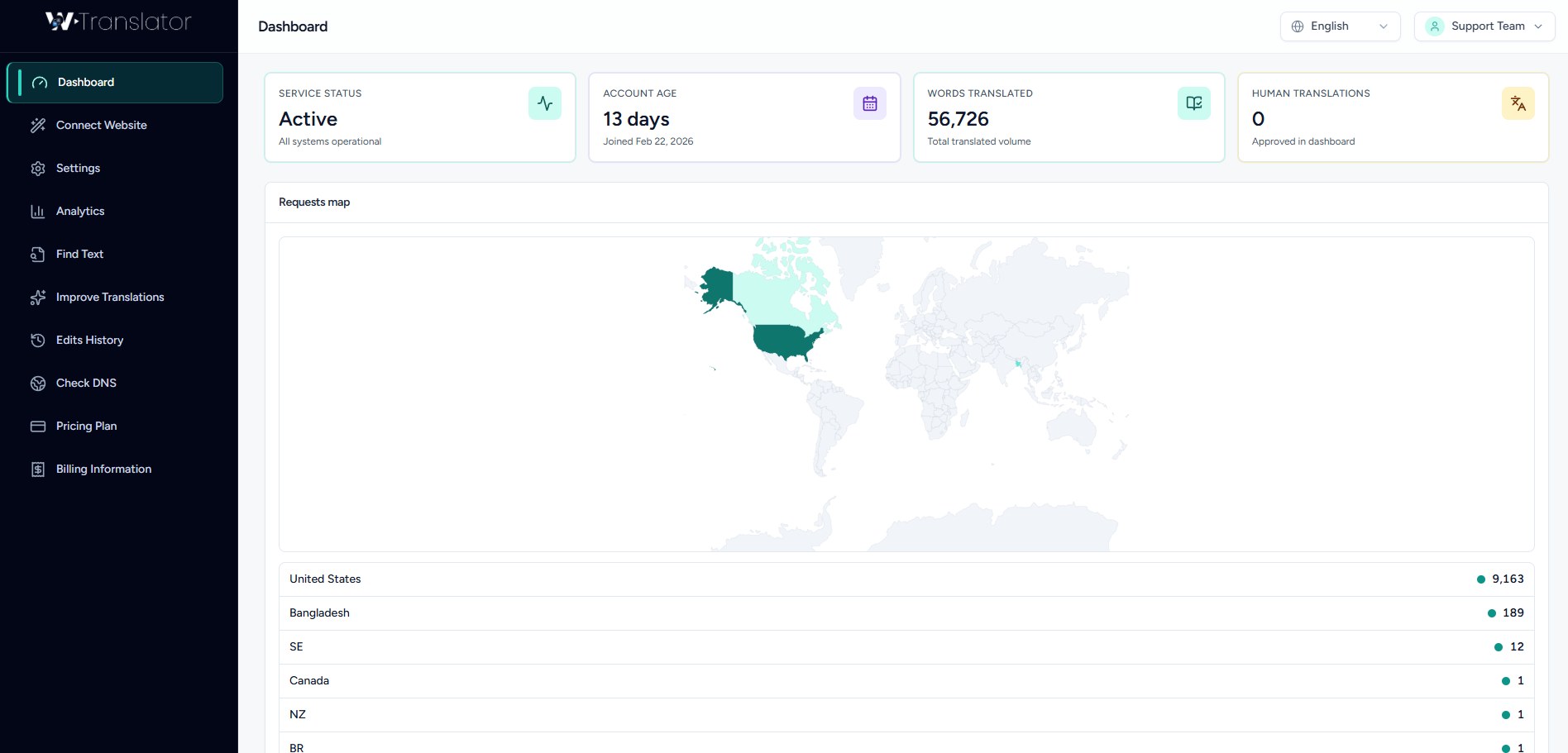
Dashboard Interface
Review your multilingual workspace, translation activity and connected-site information from one place.
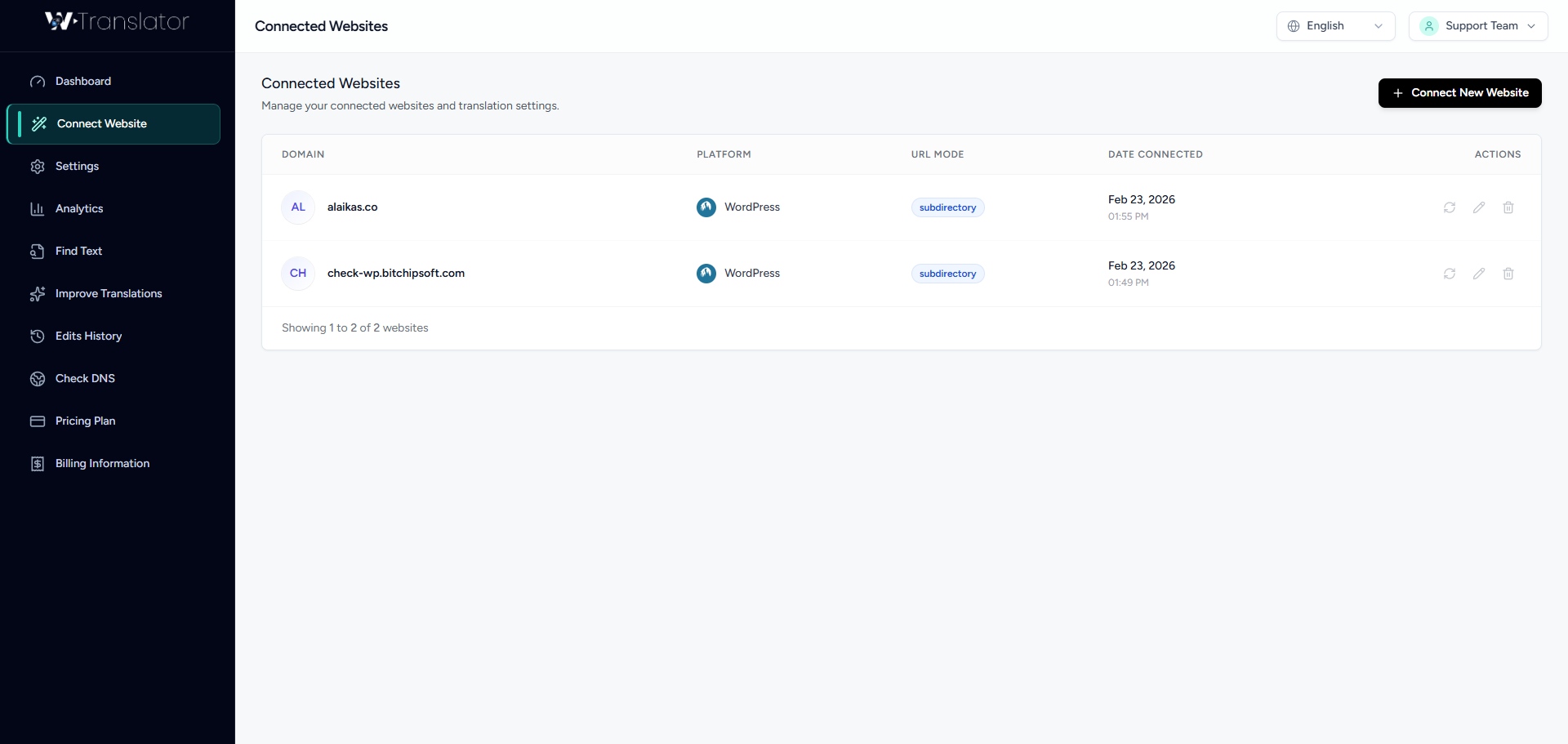
Connected Websites
Connect WordPress websites and keep site-level multilingual workflows organized from your account.
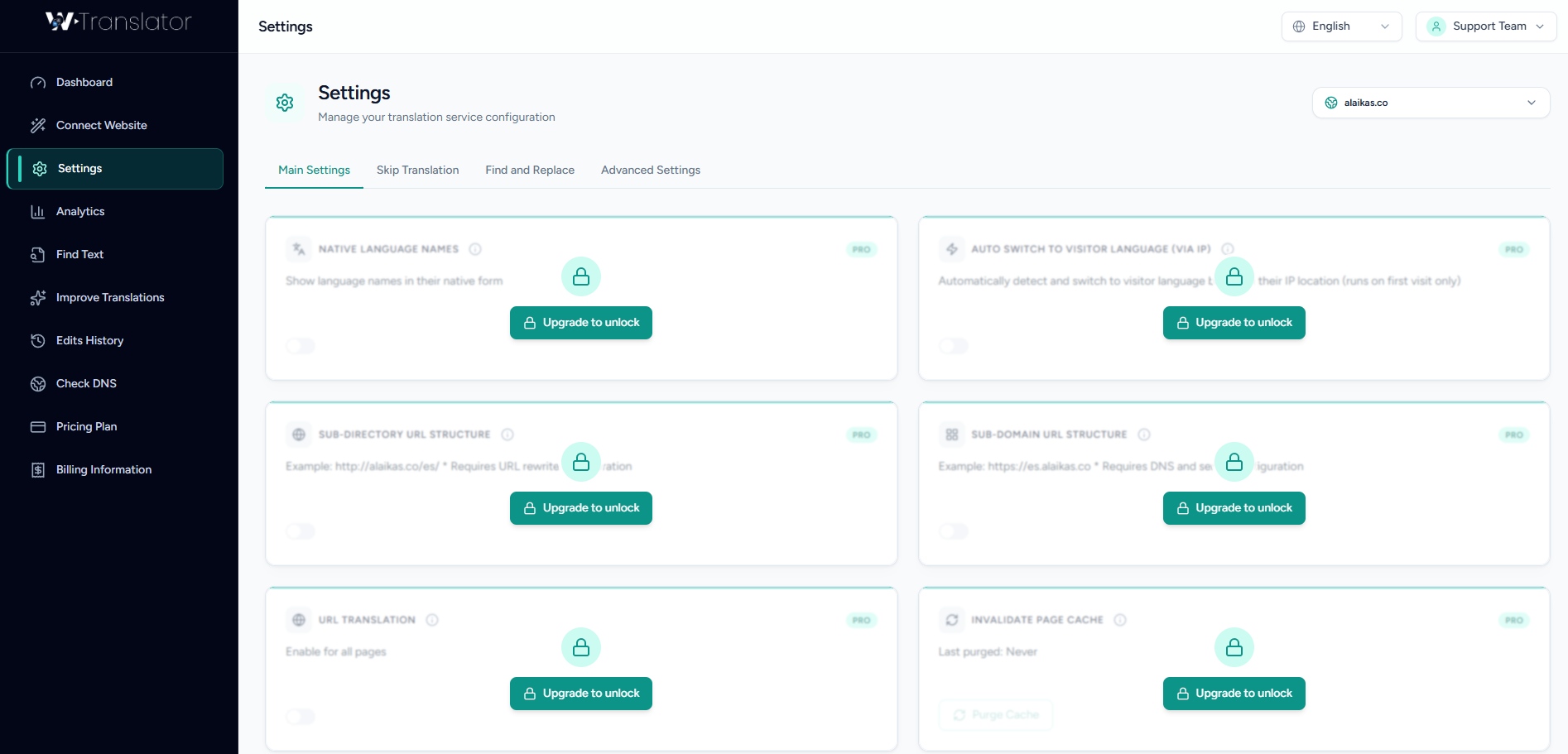
Translation Settings
Configure languages, translation behavior and available workflow settings for your WordPress site.
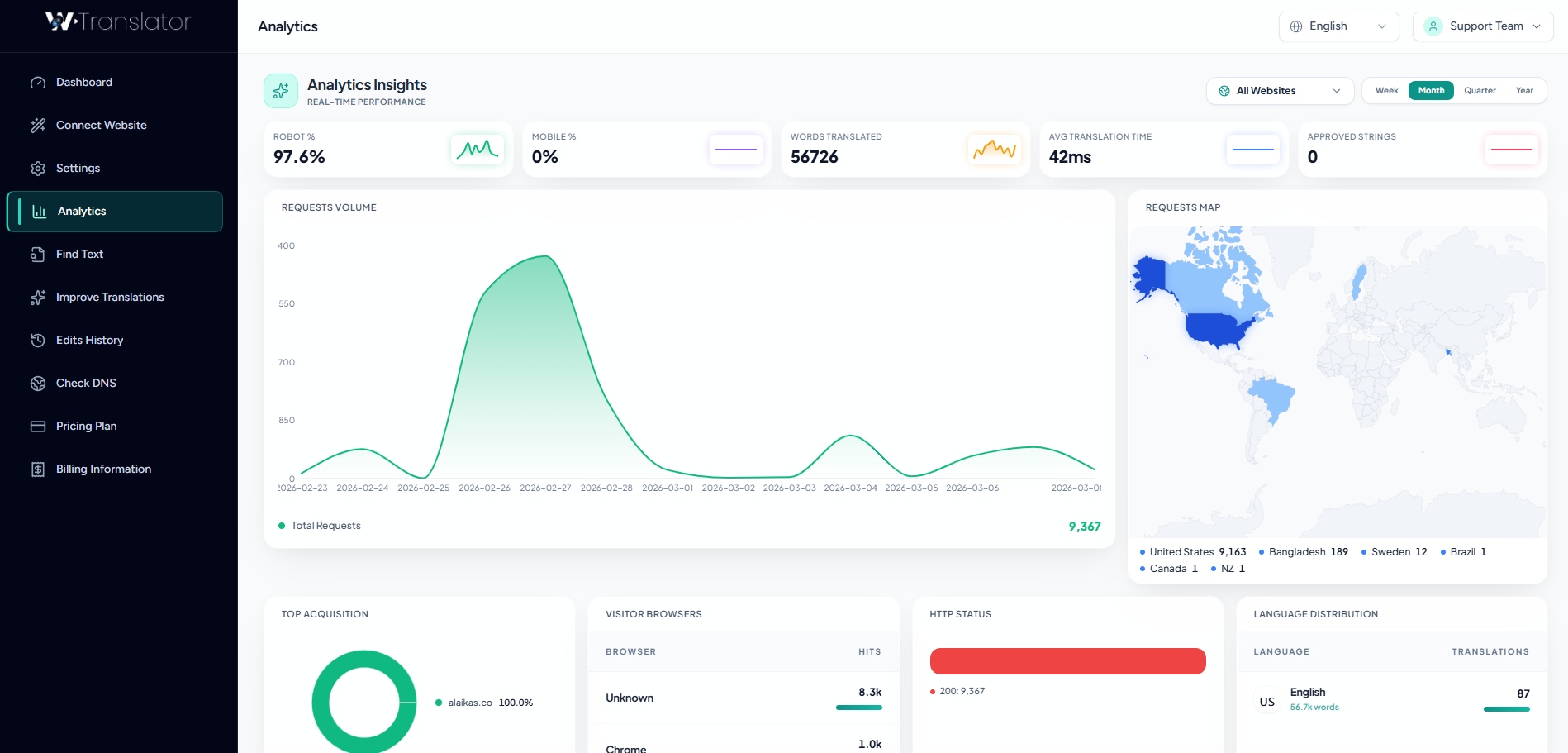
Translation Analytics
Review multilingual activity and usage information from the WTranslator dashboard.
Make sure your site is ready for WTranslator.
Keep WordPress, PHP and your browser up to date, and use HTTPS on your production site. If your hosting environment blocks plugin uploads, contact your host or install through your normal WordPress deployment process.
From installation to multilingual publishing, you have a clear next step.
Use the documentation for guided setup, contact the team when you need help, or watch the workflow before making changes on your site.
Documentation
Follow installation, setup and multilingual workflow guides when you want a step-by-step reference.
Browse documentationContact Support
Need help with setup, languages, translation workflows, account access or billing? Contact the WTranslator team.
Contact supportWorkflow Video
See how WTranslator fits into the WordPress publishing workflow before you configure your site.
Watch the workflowQuestions before you install WTranslator?
These answers cover the most common decisions around downloading, installing and starting your multilingual WordPress workflow.
Yes. You can install the free WTranslator plugin and begin with the available free translation workflow. Paid plans are available when you need additional AI translation, editing, multilingual SEO or advanced delivery capabilities.
Open your WordPress dashboard and go to Plugins → Add New Plugin → Upload Plugin. Select the WTranslator ZIP file, install it, then activate the plugin and continue through the setup flow.
No. Keep the plugin package as a ZIP file and upload that ZIP directly through the WordPress plugin installer.
WTranslator is designed to work with common WordPress publishing workflows, including supported commerce and page-builder setups. Available capabilities can vary by plan and integration, so review the relevant documentation when your site uses a complex stack.
WTranslator paid workflows can include translation editing, allowing important product, brand and marketing language to be refined after the initial automatic translation.
WTranslator is designed for multilingual WordPress publishing across 248+ languages. The exact translation and delivery capabilities available to you can depend on your plan and workflow.
Add WTranslator to WordPress today. Publish for more languages tomorrow.
Download the plugin, connect your WordPress site and start building the multilingual workflow that fits your publishing goals.