


Open this article in your preferred AI assistant. ChatGPT and Perplexity receive the prompt directly; Gemini and Claude open while the same summary prompt is copied for you.
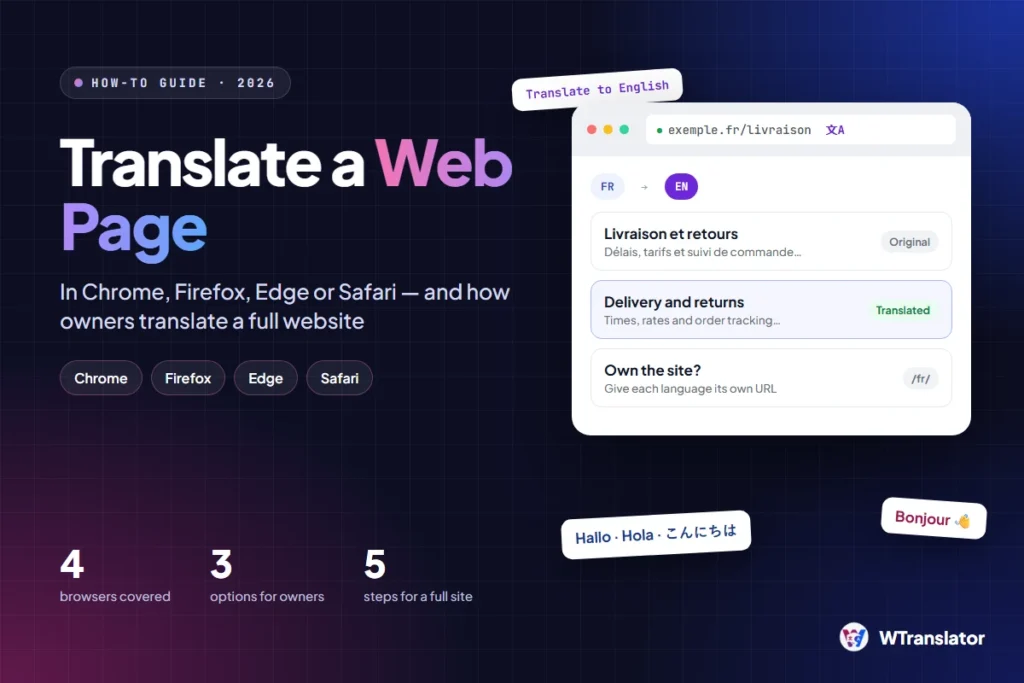
To translate a web page, open it in your browser and use the built-in Translate button. Chrome, Edge, Safari and Firefox all translate a page in a few clicks, at no cost. If you own the website, a browser translation is not sufficient, and the second half of this guide shows what to do.
Which method do you need?
- You want to read a page in a different language. Use the translation feature of your browser. Go to the section for your browser below.
- You want to translate one paragraph. Select the text and translate only the selection.
- You own the website and want visitors to read it in their language. Go to How to translate your own website.
How to translate a web page in Chrome
Chrome uses Google Translate. On a computer, do these steps.
- Open the page in Chrome.
- On the right of the address bar, select Translate.
- Select the language that you want.
- If the page does not change, refresh the page and try again.
You can also right-click the page and select Translate to [Language].
To make Chrome offer a translation each time, go to Settings > Languages. Under Google Translate, turn on Use Google Translate. In the same place, you can select the languages that Chrome translates automatically.
How to translate a web page in Firefox
Firefox translates the page on your device. Mozilla says that “translations happen entirely on your device, so your text is never sent to cloud servers”. This makes Firefox a good choice for private pages.
- Open the page in Firefox. The translation panel usually opens automatically.
- If the panel does not open, click the translation icon in the toolbar.
- Make sure that the two languages in the panel are correct.
- Click Translate.
- To see the original page again, click the icon and select Show original.
Firefox downloads a small language file the first time that you use a language.
How to translate a web page in Edge and Safari
Edge and Safari have the same type of feature.
- Microsoft Edge: select the Translate icon in the address bar, or right-click the page and select the translate command.
- Safari: select the Translate button in the address field, then select the language. Safari shows the button only for the languages that it supports.
How to translate only a part of a page
Sometimes you need one paragraph and not the full page.
- Select the text with your mouse.
- Right-click the selection.
- Select Translate selection to [Language].
This command has the same name in Chrome and in Firefox.
Translate a page with its URL
You can also translate a page without a browser feature. Go to translate.google.com, select Websites, and paste the address of the page. Google then opens a translated copy of the page.
This method is useful on a computer where you cannot change the browser settings.
Limits of browser translation
Browser translation is made for reading. It has four limits that you must know.
- The translation is temporary. It disappears when you close the page.
- Text in images is not translated. Buttons and banners that are images stay in the original language.
- Some parts can stay untranslated. Examples are pop-ups, forms and text that loads after the page.
- The quality changes with the language. Read our guide to ChatGPT translation to see why less common languages get weaker results.
How to translate your own website
If you own the site, do not rely on the browser of each visitor. Many visitors do not know the feature, and some leave before they find it. There is also a second problem: search engines do not see a browser translation, so your site cannot rank in the other language.
You have three options.
| Option | What the visitor sees | Can the translated page rank? | Work for you |
|---|---|---|---|
| Do nothing | The original language, unless the visitor uses the browser | No | None |
| A translation widget that translates in the browser | A language switcher and a translated page | No. The translated text has no URL of its own | A few minutes |
| A website translation tool that stores translated pages | A language switcher and a page at a language URL such as /fr/ | Yes, with hreflang tags | Minutes to hours, plus a review of important pages |
The free WTranslator plugin for WordPress is in the second row. It adds a language switcher and translates the page in the browser of the visitor. The paid WTranslator plans are in the third row. They store the AI translation of each page, publish it at a language URL and add the hreflang tags.
For the full procedure on WordPress, read How to Translate a WordPress Website.
How to translate a full website in five steps
- Find the countries that already send you visitors. Google Search Console shows them.
- Select one or two languages to start.
- Install a website translation tool and select those languages.
- Review your home page, your pricing page and your contact page in each language.
- Make sure that each translated page has its own URL and hreflang tags.
Frequently asked questions
How do I translate a web page to English?
Open the page in Chrome, select Translate on the right of the address bar, and select English. In Firefox, click the translation icon and then Translate.
Why is there no Translate button on my page?
The browser shows the button only when the page language is different from your browser language and the language is supported. In Chrome, also make sure that Use Google Translate is on in Settings > Languages.
Is browser translation private?
That depends on the browser. Firefox translates on your device. Mozilla states that Chrome and Edge send the text to cloud servers.
Can I translate a full website at no cost?
Yes, as a visitor: the browser translates each page that you open. As an owner, a free widget lets visitors read your site, but indexed translated pages usually need a paid plan.
Sources
- Google Chrome Help, Translate pages and change Chrome languages, read 21 November 2026
- Mozilla Support, Firefox translations, updated 13 October 2026




Comments
0 responsesNo comments yet. Be the first to share your thoughts.