
WTranslator Support & Documentation
Your complete guide to mastering WTranslator's powerful translation features
Comprehensive GuideGetting Started with WTranslator
Welcome to WTranslator! This comprehensive guide will walk you through creating an account, logging in, and getting familiar with your dashboard. Follow these simple steps to start translating your website today and reach a global audience.
Creating Your Account
Visit the Registration Page
Navigate to https://app.wtranslator.com/register to begin the registration process. Our secure registration form ensures your data is protected from the start.
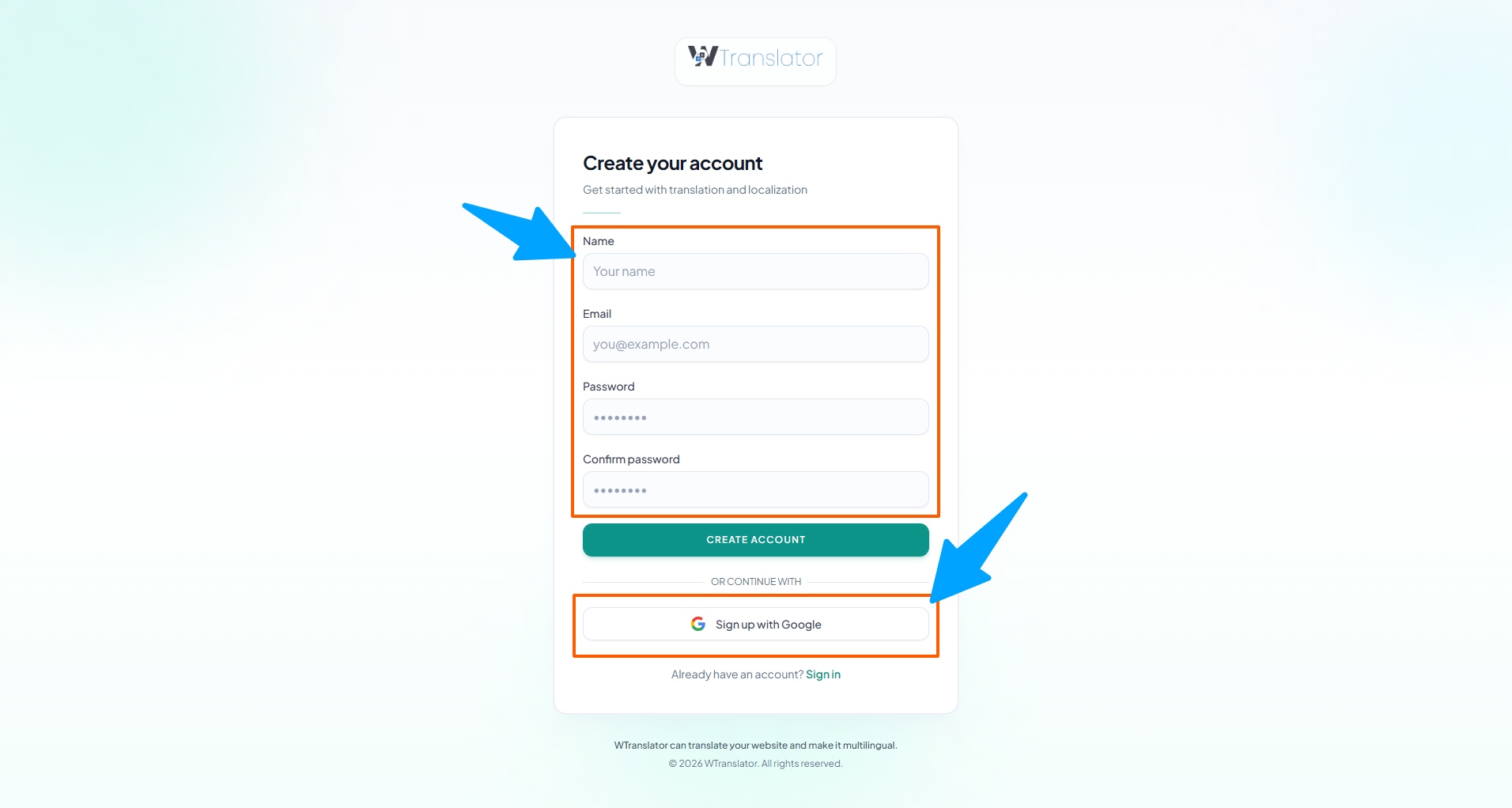
WTranslator Registration Page - Start Your Journey
Fill in Your Details
Enter your name, email address, and create a secure password. We recommend using a strong password that includes uppercase letters, numbers, and special characters for maximum security.
Verify Your Email
Check your inbox for a verification email and click the confirmation link to activate your account. If you don't see the email within 5 minutes, please check your spam or junk folder.
Logging In to Your Account
Once your account is created and verified, you can log in at any time to access your translation dashboard:
Visit the Login Page
Go to https://app.wtranslator.com/login to access the secure login form. Our login page uses industry-standard encryption to protect your credentials.
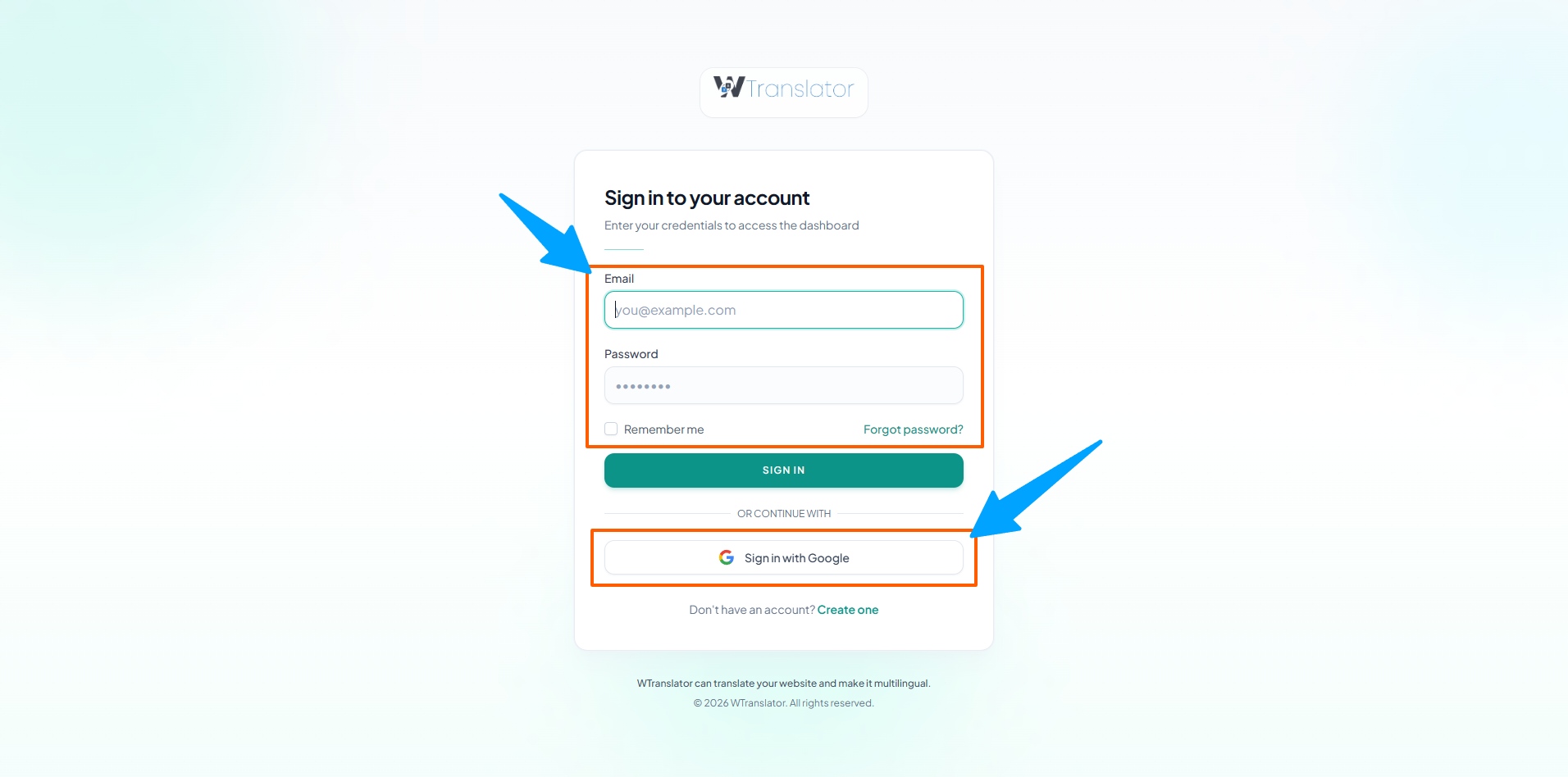
Secure Login Portal - Access Your Dashboard
Enter Your Credentials
Input the email and password you created during registration and click "Login". For added security, you can enable two-factor authentication in your account settings.
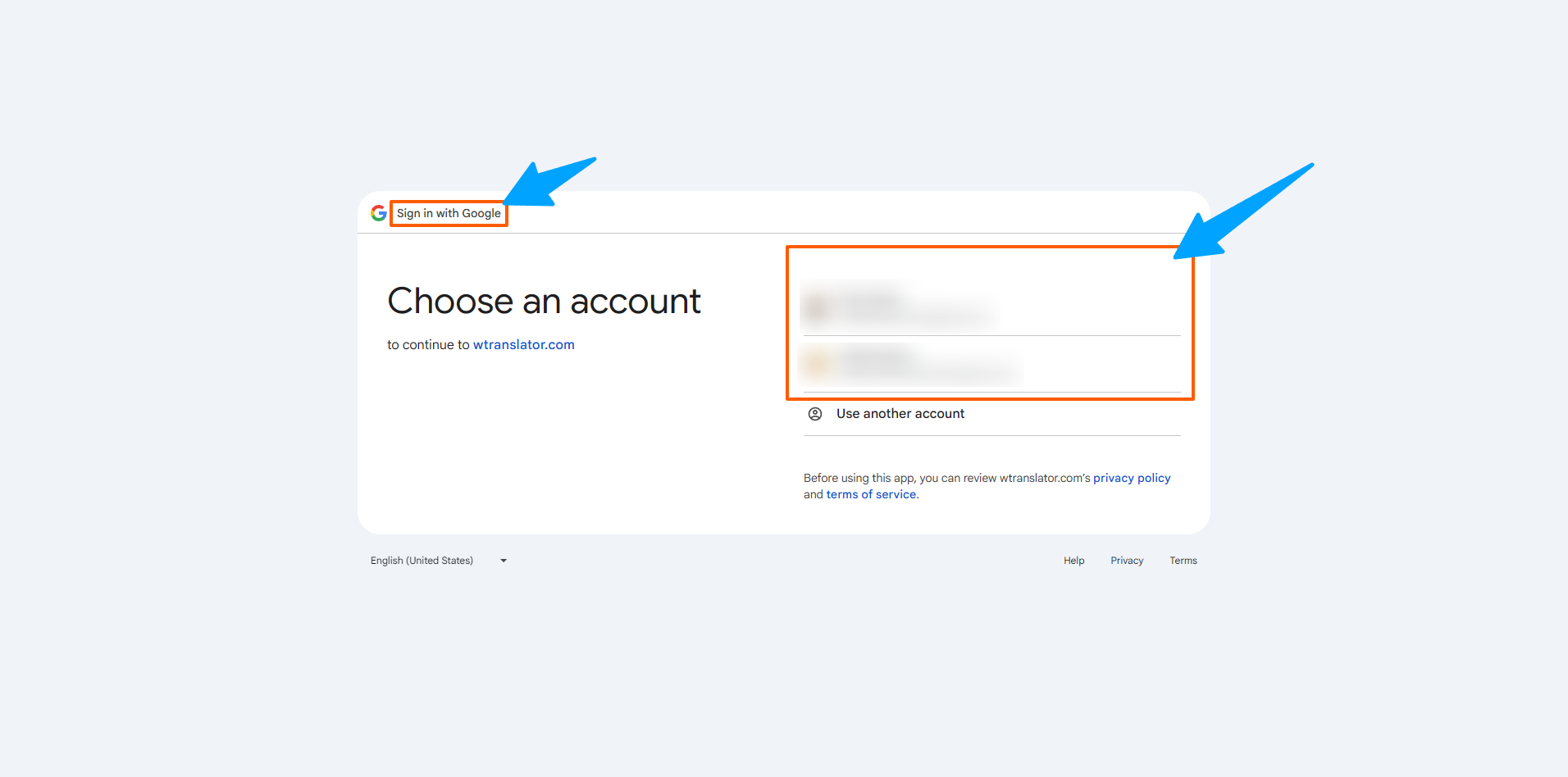
One-Click Google Authentication
Exploring Your Dashboard
After a successful login, you'll be directed to your personalized WTranslator dashboard. This is your command center for managing translations, monitoring performance, and accessing all platform features.
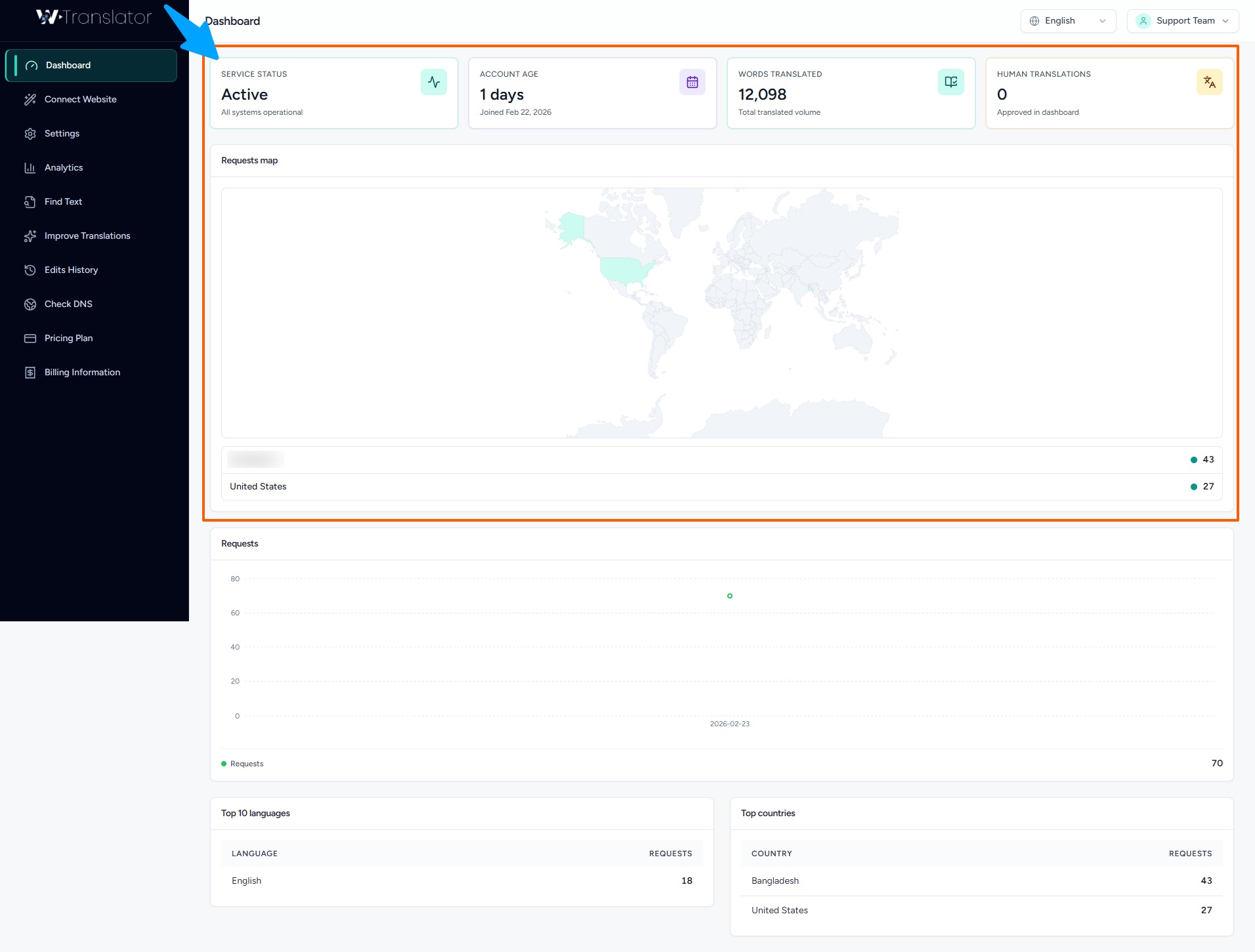
Your Personal WTranslator Dashboard
The dashboard provides instant access to:
- Connected Websites: View all your connected sites and their translation status at a glance
- Translation Analytics: Monitor translation performance, visitor statistics, and language preferences
- Quick Actions: Start new translations, review recent changes, and access common tasks
- Activity Feed: Stay updated with recent translation activities and system notifications
- Resource Center: Quick access to documentation, tutorials, and support resources
Connecting Your Website
Connecting your website to WTranslator unlocks the power of automatic translation. Our streamlined connection process ensures your site is ready for multilingual content in just a few minutes.
Managing Connected Websites
The "Connected Websites" section is your central hub for managing all sites that use WTranslator for translation. Here's how to get started:
Navigate to Connected Websites
From your dashboard, click on the "Connected Websites" tab in the main navigation menu. This section displays all your current and past website connections.
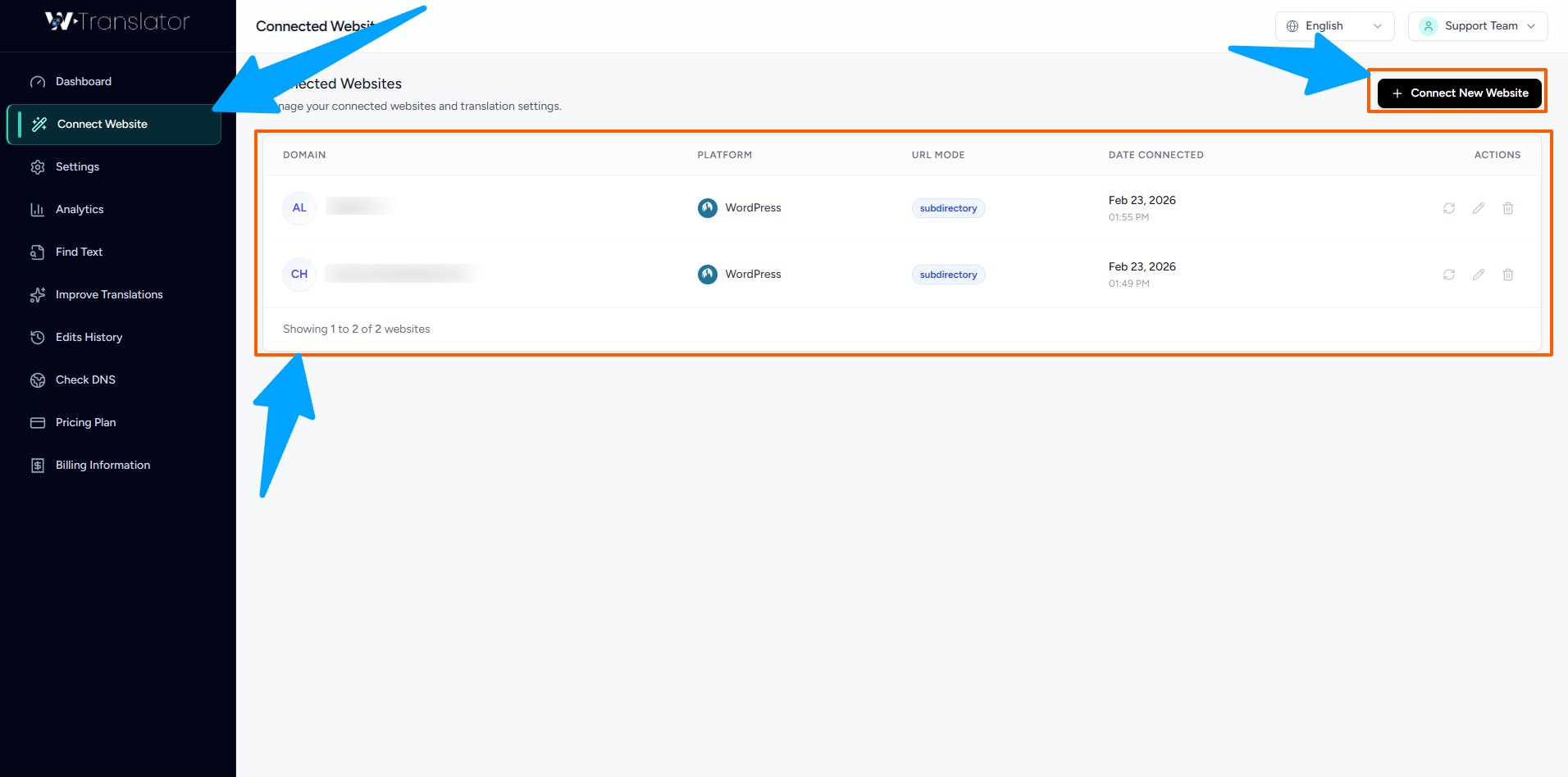
Website Connection Management Center
Add a New Website
Click the prominent "Add New Website" button to begin the connection wizard. You'll need to provide your website URL and select your CMS platform for optimal integration.
Configure Translation Settings
Select your target languages, set translation preferences, and choose how you want language switching to appear on your site. You can always adjust these settings later.
Install and Configure
Follow the platform-specific instructions to install the WTranslator plugin or add the necessary code to your website. Our step-by-step guides make this process simple for any technical level.
Main Settings and Features
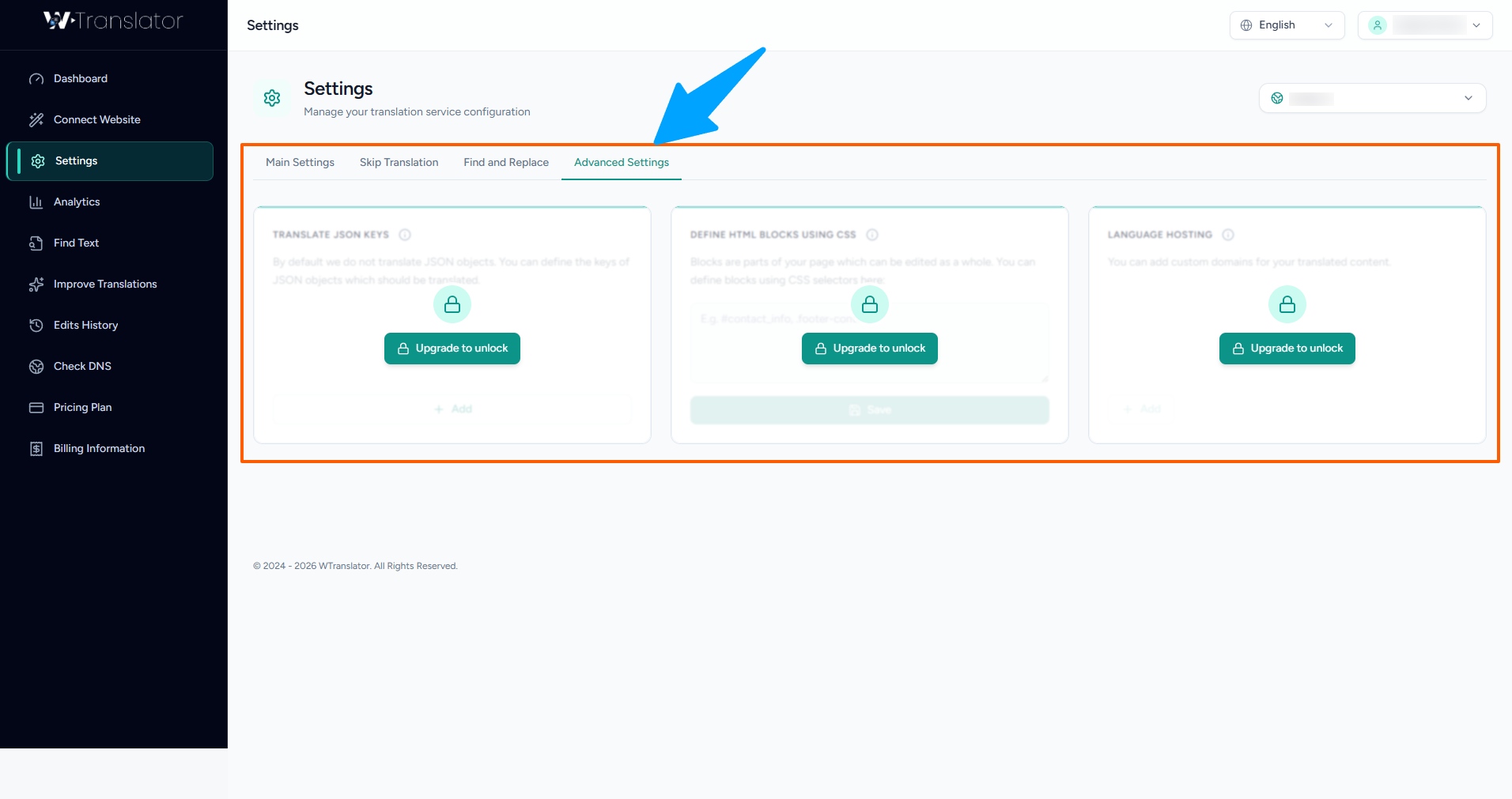
WTranslator provides four essential settings categories to customize your translation experience and ensure optimal performance:
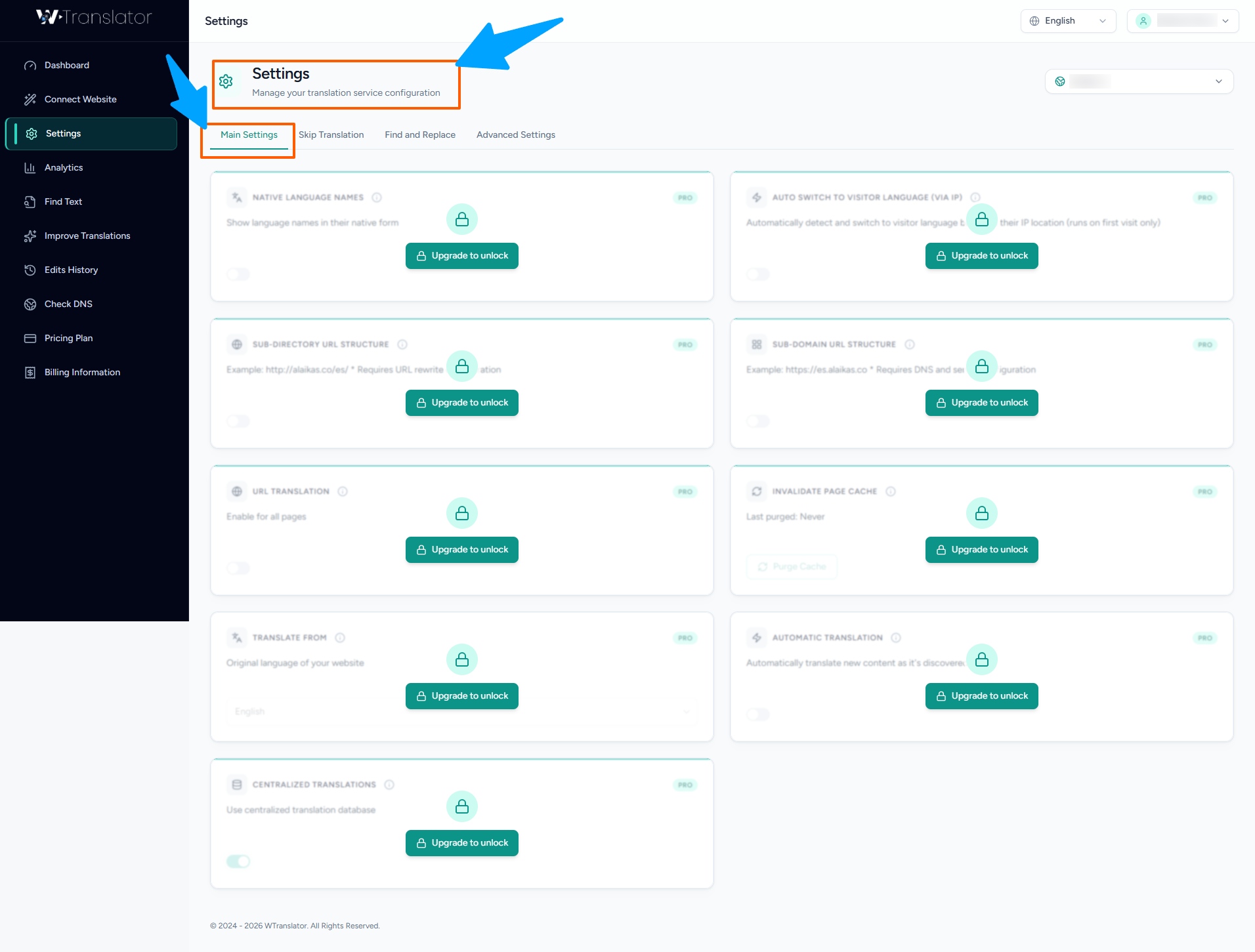
Comprehensive Settings Dashboard
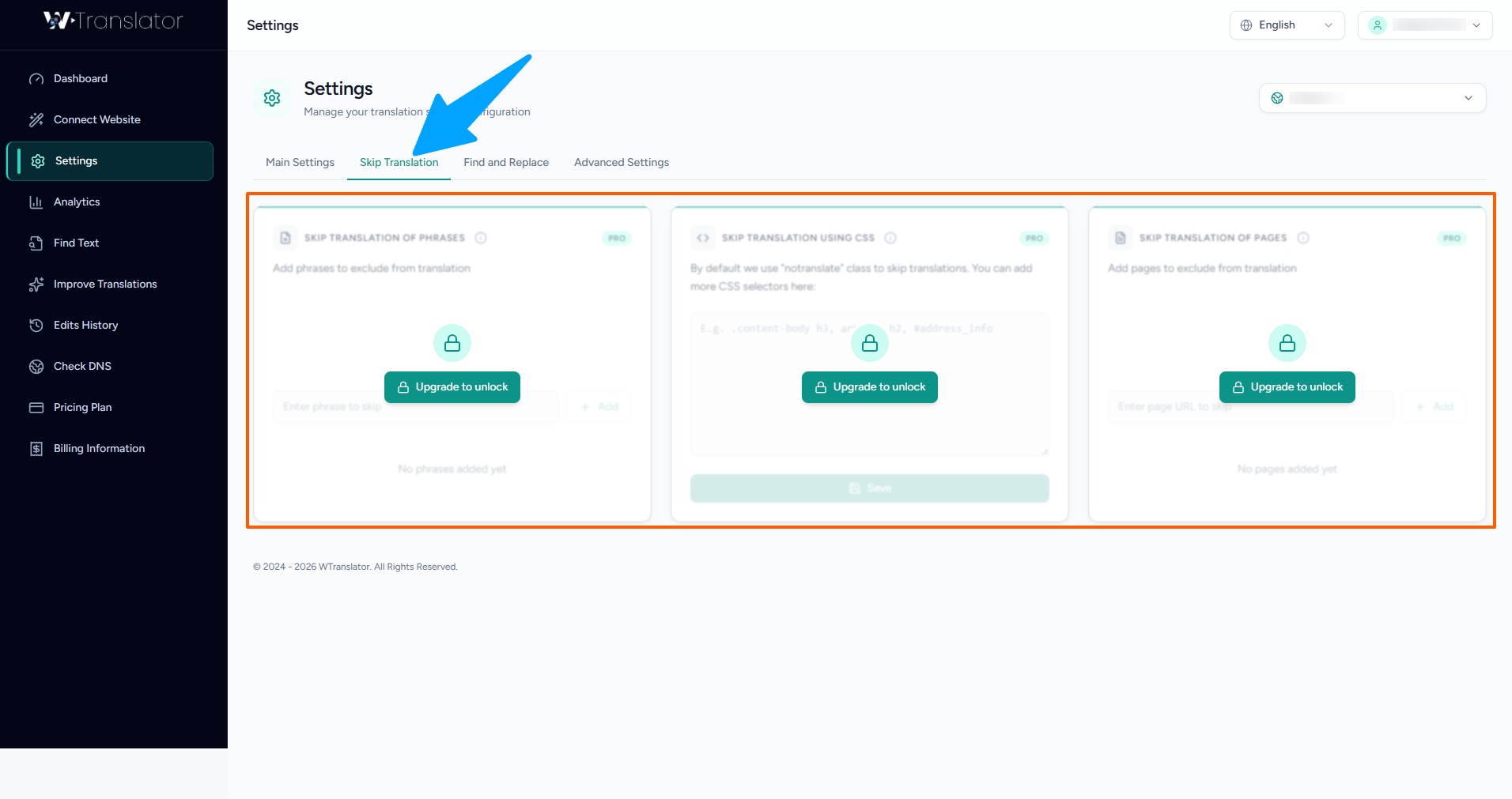
Skip Translation
Control which content should not be translated. Perfect for brand names, technical terms, code snippets, or content that needs to remain in the original language for specific reasons.
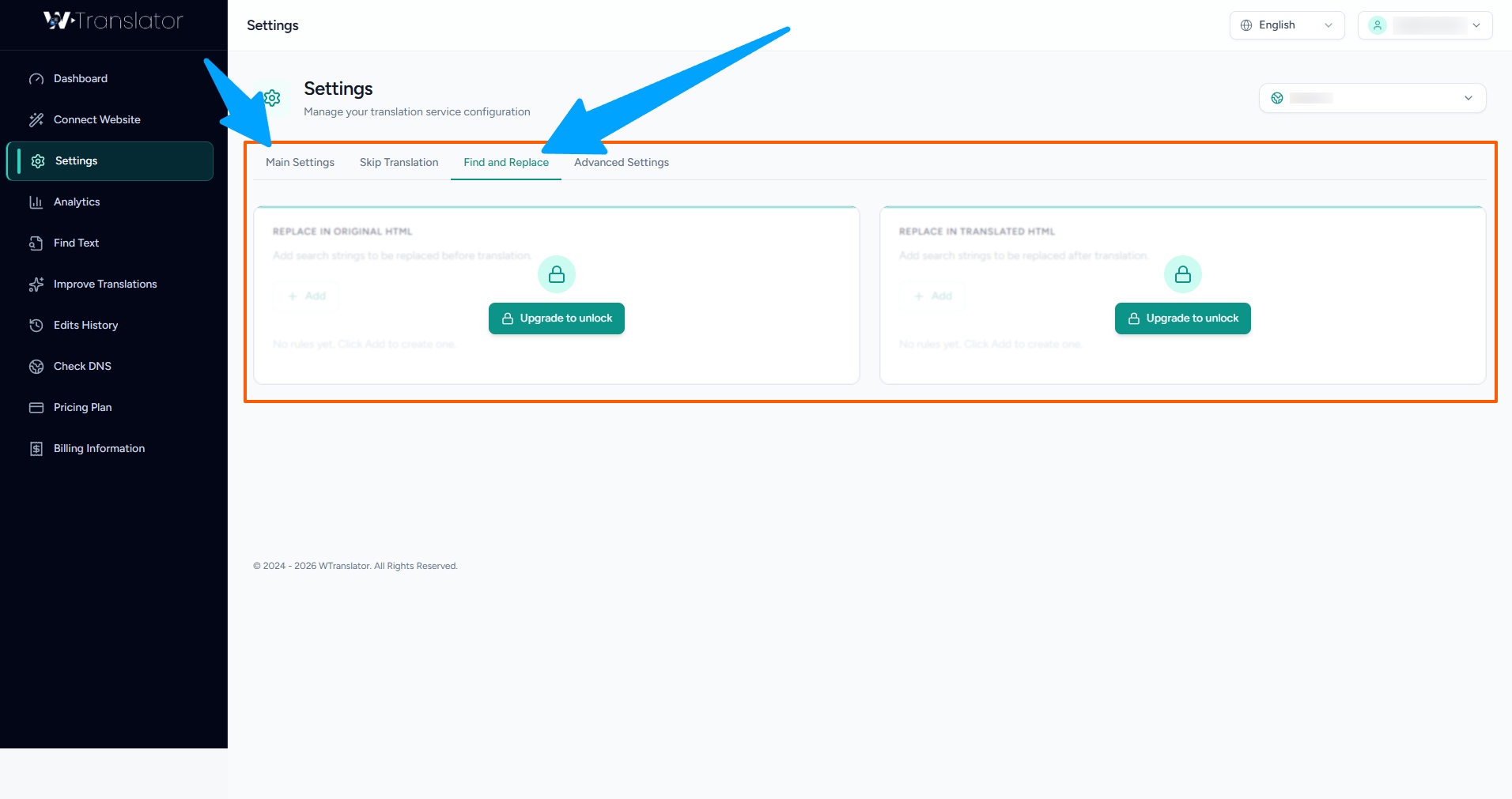
Find And Replace
Quickly locate and modify specific words or phrases across all translations. Ideal for updating terminology, correcting consistent errors, or implementing brand voice guidelines.
Advanced Settings
Access powerful customization options including API configurations, custom translation rules, caching controls, and developer-focused features for maximum flexibility.
WTranslator Features
WTranslator offers a comprehensive suite of features designed to make website translation powerful, flexible, and user-friendly. Explore these advanced tools to create the perfect multilingual experience for your visitors.
Analytics and Insights
Make data-driven decisions with our comprehensive analytics dashboard. Get detailed insights about how your multilingual content is performing and understand your global audience better.
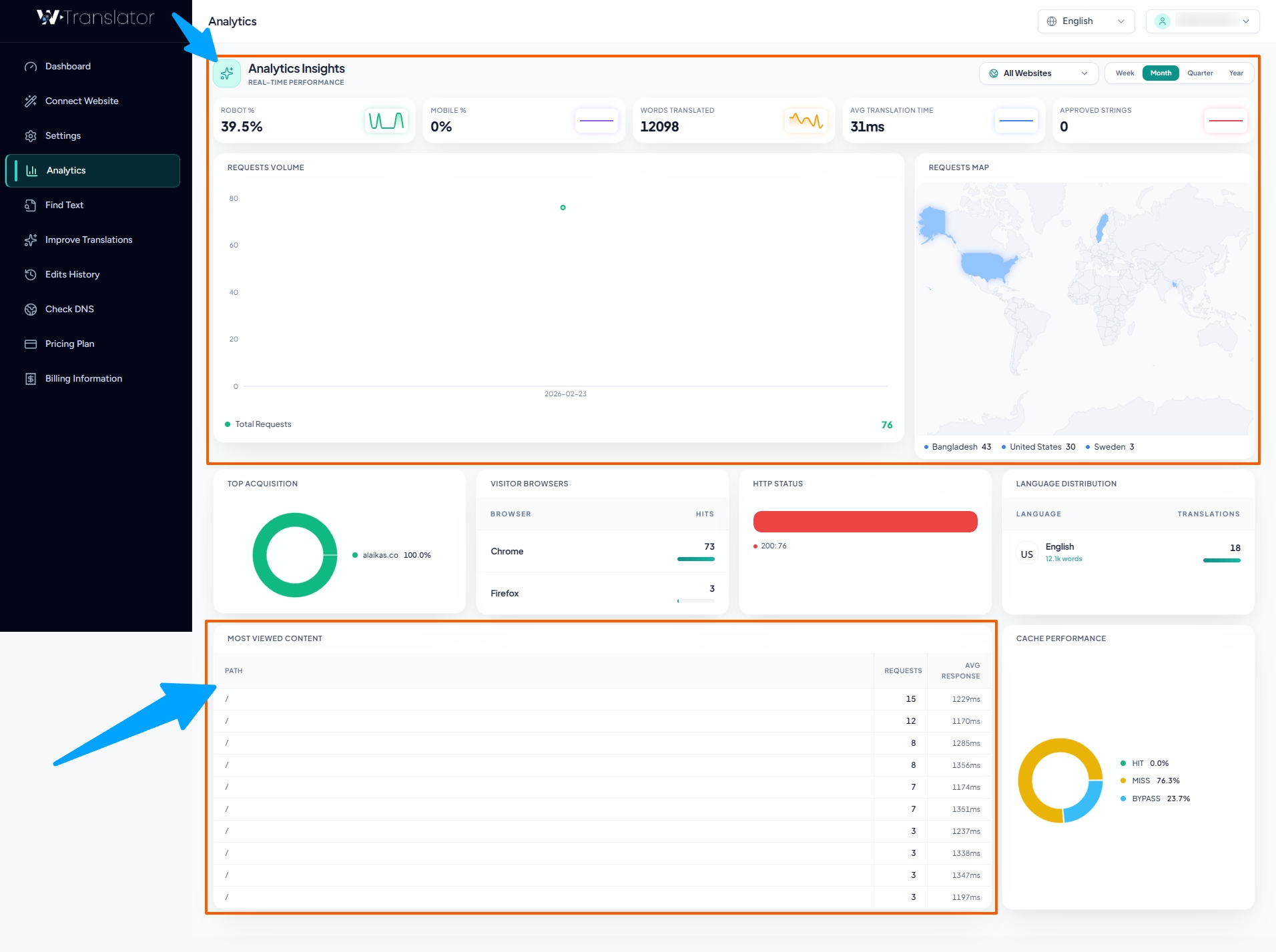
Detailed Analytics by Country and Language
The analytics dashboard provides valuable insights including:
- Geographic Distribution: See which countries your visitors are coming from and identify emerging markets
- Language Preferences: Understand which languages are most popular among your audience
- Page Performance: Track which translated pages receive the most engagement
- Conversion Metrics: Monitor how translations impact your conversion rates and user behavior
- Translation Quality Scores: View AI confidence scores and user feedback on translation quality
Translation Management
Take full control of your translations with our comprehensive management tools. Whether you prefer automatic AI translation or manual refinement, we have the right tools for your workflow.
Finding Translated Text
Our powerful search functionality makes it easy to locate and review specific translated content across your entire website:
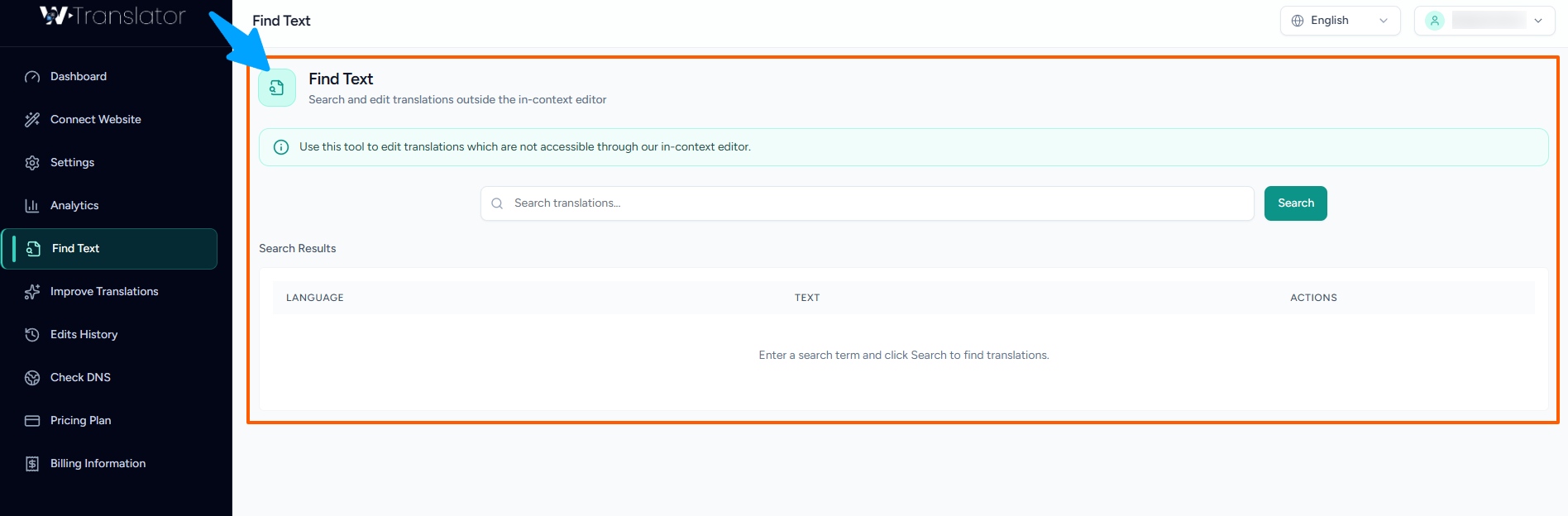
Advanced Search and Filter System
Use the Smart Search Bar
Enter keywords, phrases, or even partial words to find specific translations. Our search supports multiple languages and understands context.
Apply Advanced Filters
Narrow down results by language, page type, translation status, date range, or even specific translators who worked on the content.
Improving Translations
While our AI provides highly accurate translations with 95%+ accuracy, you can refine and customize them to perfectly match your brand voice and industry terminology:
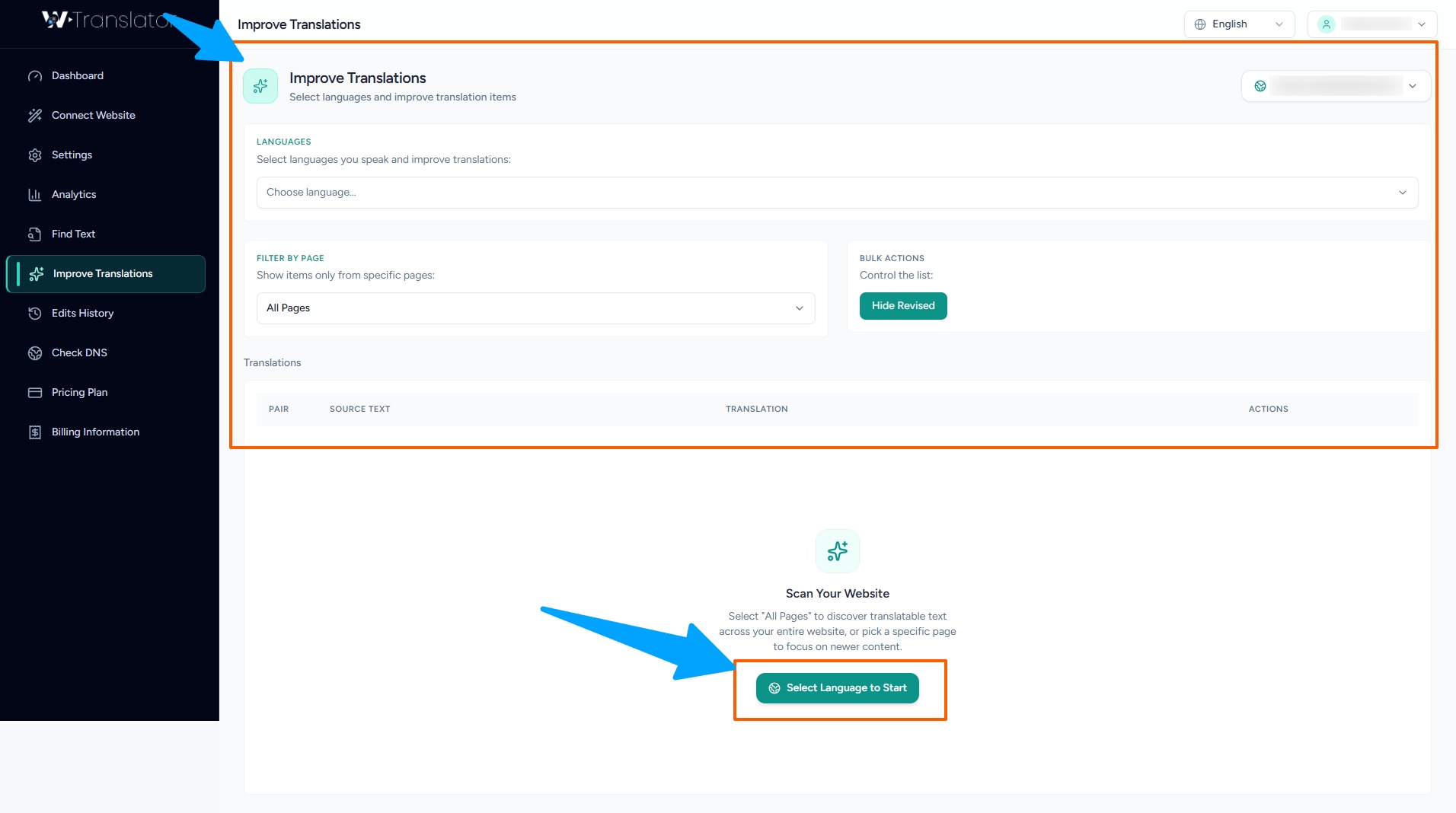
Intuitive Translation Editor
Select the Text to Edit
Navigate to the specific translation you want to improve and click the "Edit" button. You'll see both the original and translated text side by side.
Make Your Changes
Edit the translated text directly in our intuitive editor. You can also add translator notes, specify preferred terminology, or lock certain phrases to prevent future changes.
Save and Apply
Save your changes to see them immediately reflected on your website. Your edits also help train our AI for better future translations.
Translation History
Track every change with our comprehensive version control system. Never lose a translation and maintain full audit trails:
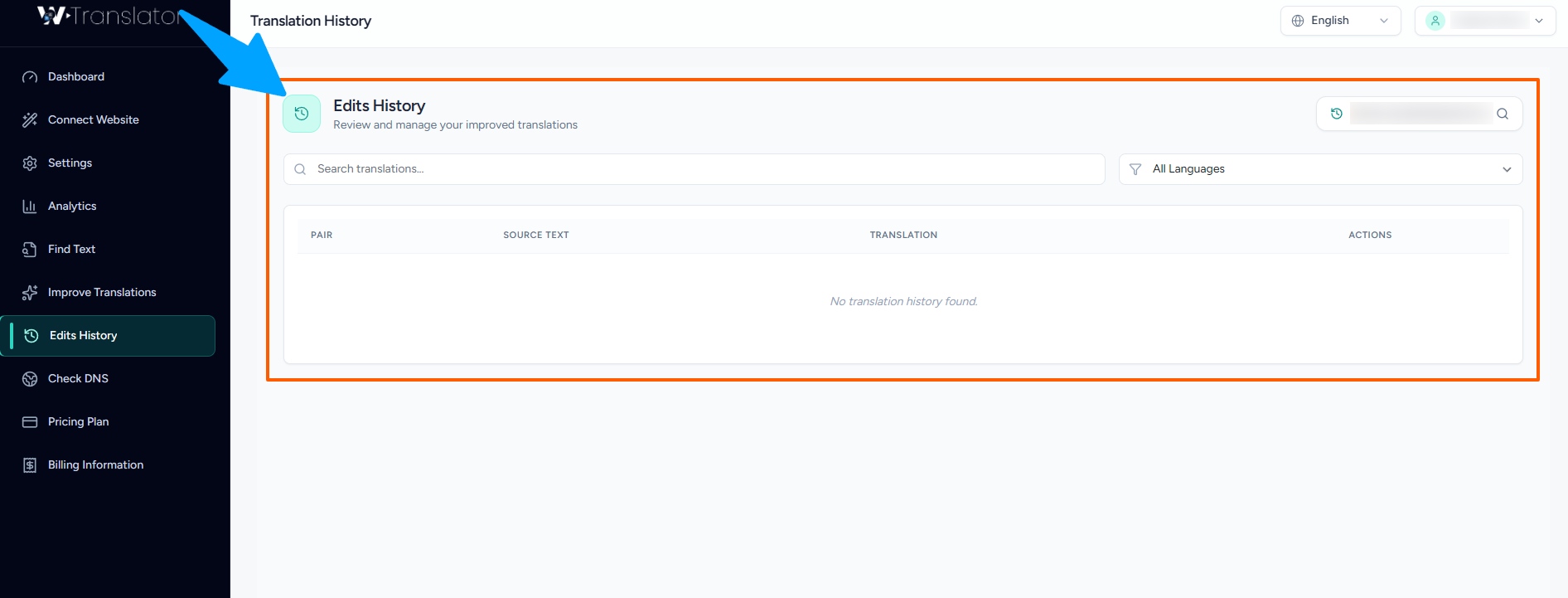
Complete Translation History and Version Control
The history feature allows you to:
- View all previous versions of any translation with timestamps
- See exactly who made specific changes and when
- Compare different versions side by side
- Revert to earlier translations if needed
- Track translation quality improvements over time
- Export translation history for compliance or review purposes
DNS Configuration
Ensure your multilingual site is properly configured for optimal performance and SEO with our comprehensive DNS checking tool:
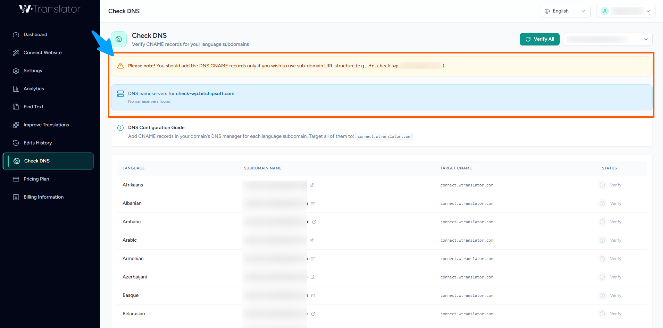
Advanced DNS Configuration Checker
The DNS checker helps you:
- Verify proper domain configuration for multilingual content
- Identify and resolve potential DNS issues before they affect users
- Ensure correct setup for language-specific subdomains or subdirectories
- Confirm SSL certificate validity across all language versions
- Test CDN integration and caching configurations
- Monitor DNS propagation and changes
Account Management
Manage your subscription, billing, and account settings with our comprehensive account management tools. This section covers everything you need to know about maintaining and optimizing your WTranslator account.
Pricing Plans
WTranslator offers flexible pricing plans designed to scale with your business. From personal blogs to enterprise websites, we have a solution that fits your requirements and budget.
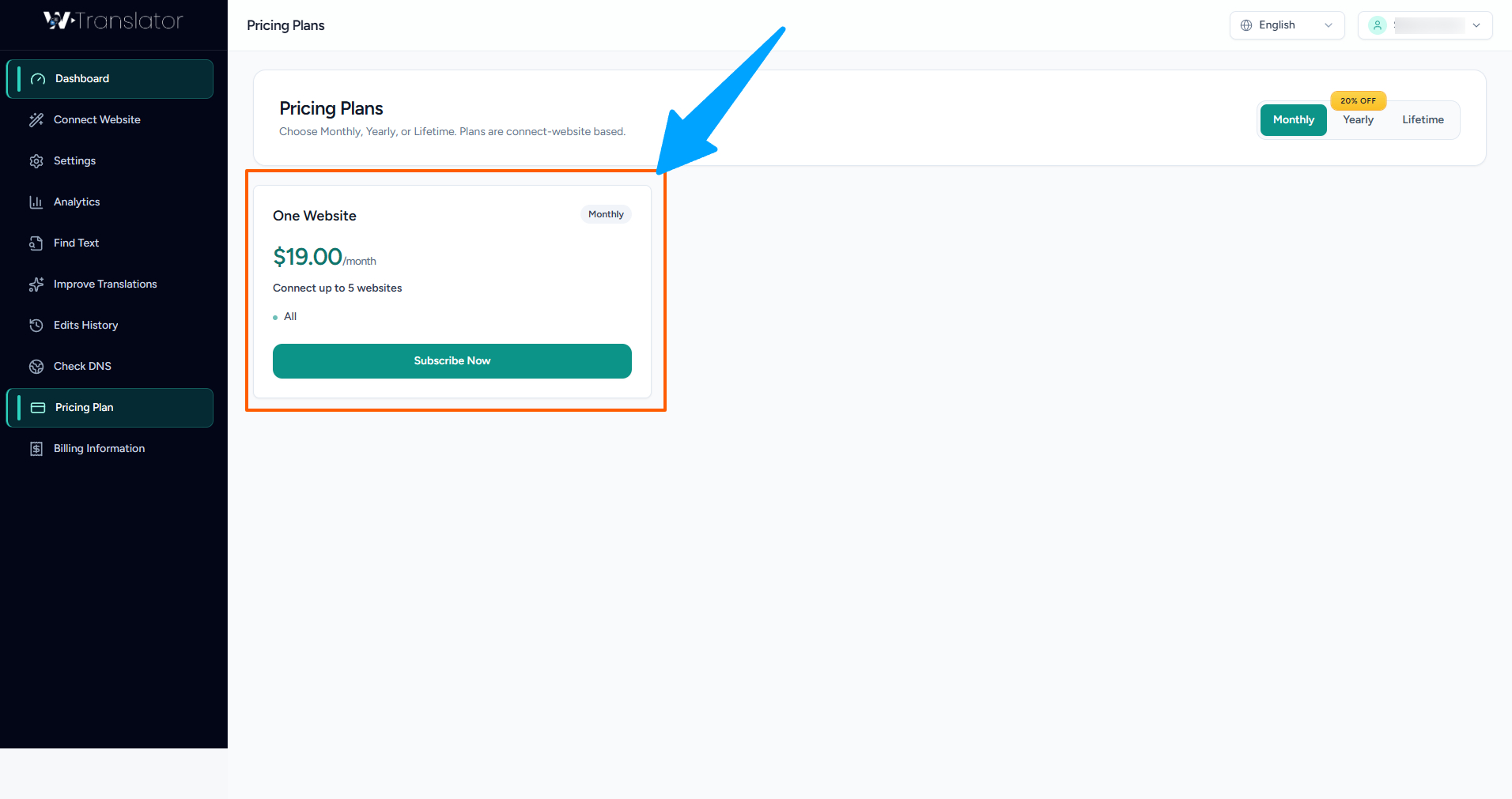
Flexible Pricing Plans for Every Need
Starter
Perfect for personal websites and small blogs with basic translation needs. Includes up to 5 languages and 10,000 words per month.
Professional
Ideal for growing businesses with multiple language requirements. Includes up to 20 languages and 100,000 words per month.
Business
Designed for established businesses with comprehensive translation needs. Unlimited languages and 500,000 words per month.
Enterprise
Custom solutions for large organizations with specific requirements. Unlimited everything plus priority support.
Compare Plans
Navigate to the "Pricing" section in your account to see a detailed comparison of all available plans and their features.
Flexible Changes
Upgrade or downgrade your plan at any time based on your evolving needs. Upgrades take effect immediately, while downloads apply at the next billing cycle.
Custom Solutions
For enterprise customers with specific requirements, contact our sales team to discuss a custom plan tailored to your unique needs.
Billing History
Keep track of all your payments and subscriptions with our comprehensive billing management system:
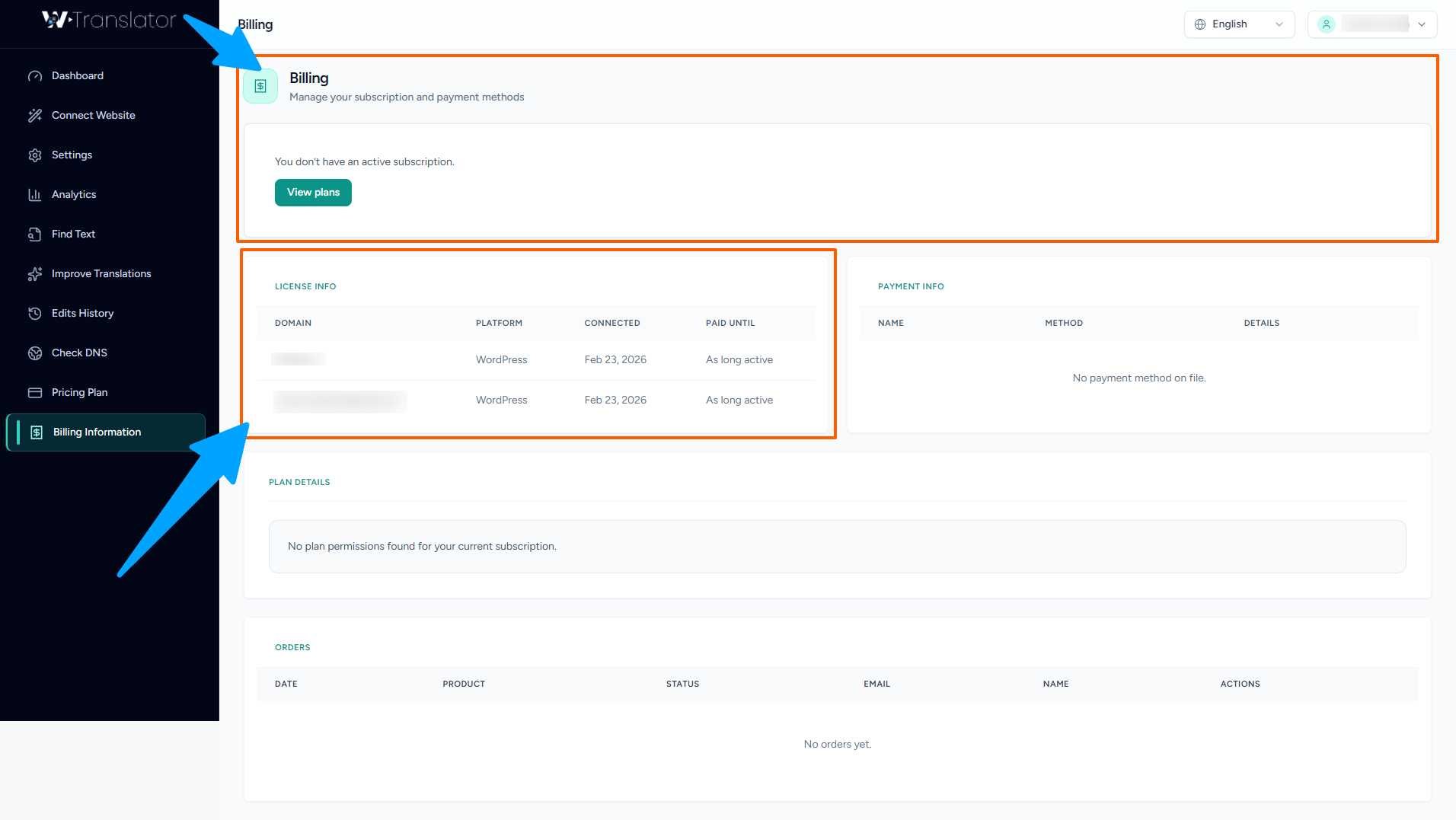
Complete Billing and Payment History
In the billing section, you can:
- View and download all past invoices and receipts
- Track payment status and upcoming charges
- Update payment methods and billing information
- Manage multiple payment methods for flexibility
- Set up automatic payments for convenience
- Access tax documents and expense reports
- View subscription renewal dates and terms
Account Settings
Customize your account experience with our comprehensive settings and security options:
Profile Management
Update your personal information, profile picture, and contact details. Keep your information current to ensure smooth communication and account recovery.
Security Settings
Enable two-factor authentication, manage active sessions, set up login notifications, and review security logs to keep your account protected.
Notification Preferences
Control how and when you receive notifications about translations, billing updates, system maintenance, and important account changes.
API and Integrations
Generate and manage API keys, set up webhooks, and configure third-party integrations to extend WTranslator's capabilities.